Welcome to our brand new beneficial ownership – for Trusts!
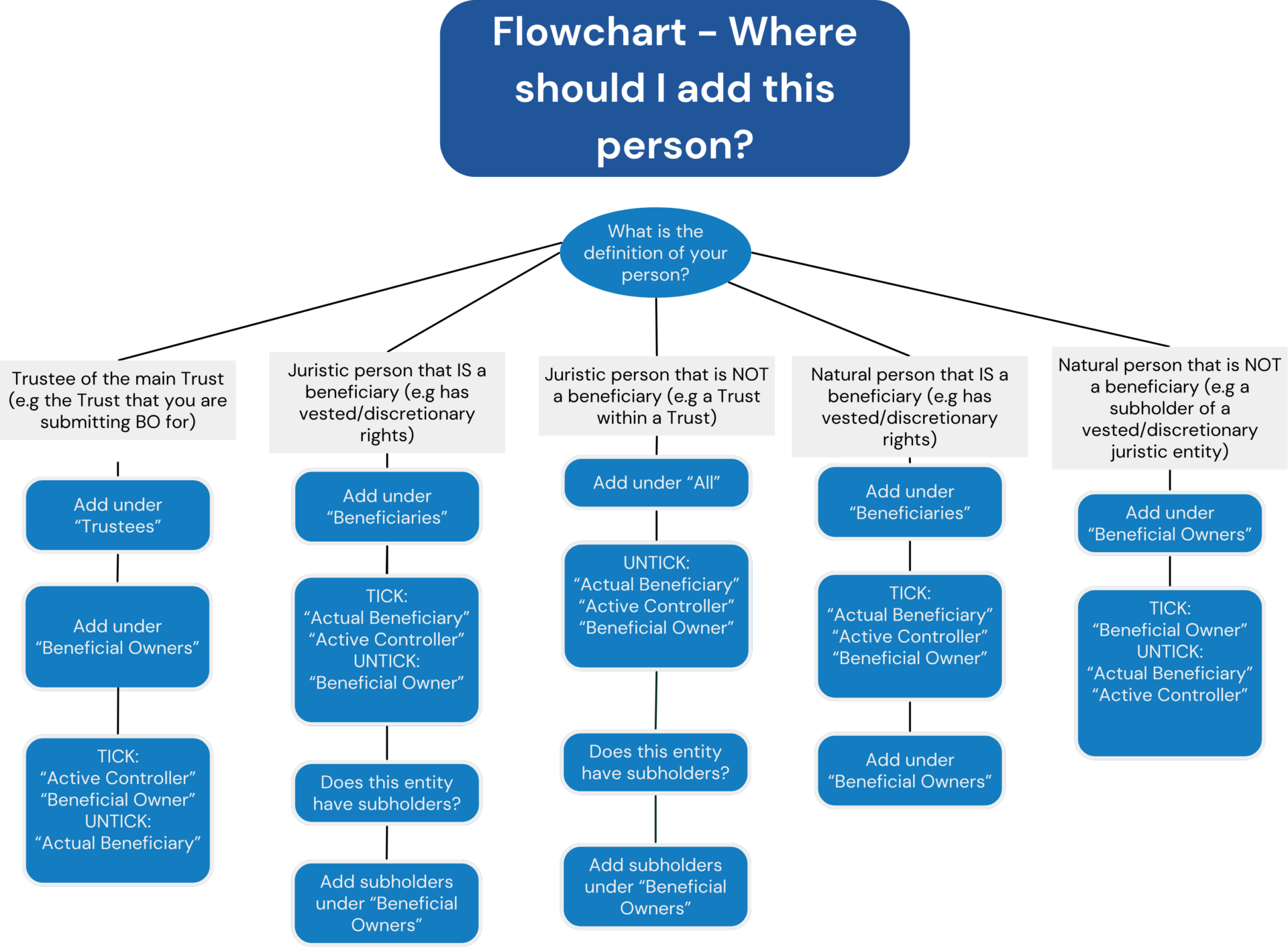
The following guide will take you through all the steps to complete your BO declaration documents for submission to the Masters Office. To view all the latest changes in CompanyRegisters, read this article. The process is similar to our BO for Companies and CC’s, with a few minor differences. Check out the flowchart at the bottom of the page for determining where to add your persons.
Overview of changes to Trust buttons
Let’s start at the beginning and show you what’s changed.
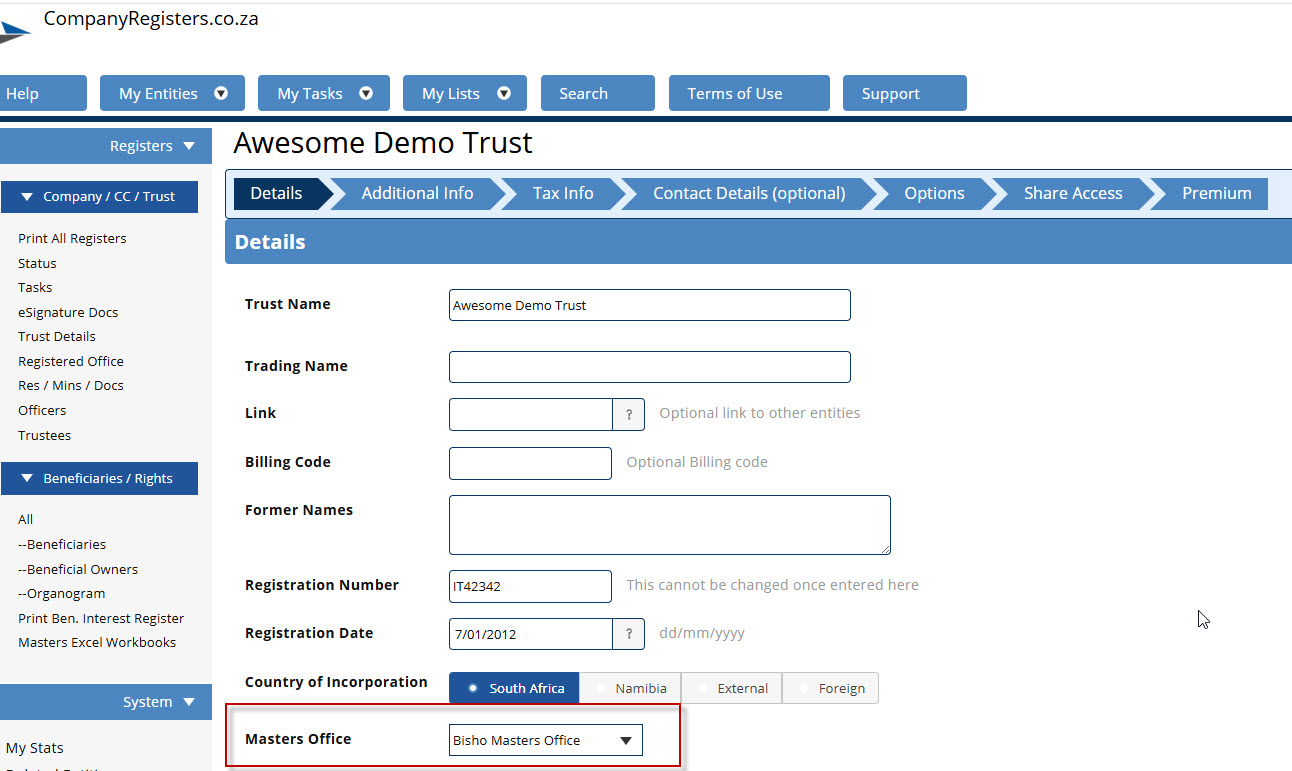
On the Details page for your Trust, there is a new field for Masters Office:
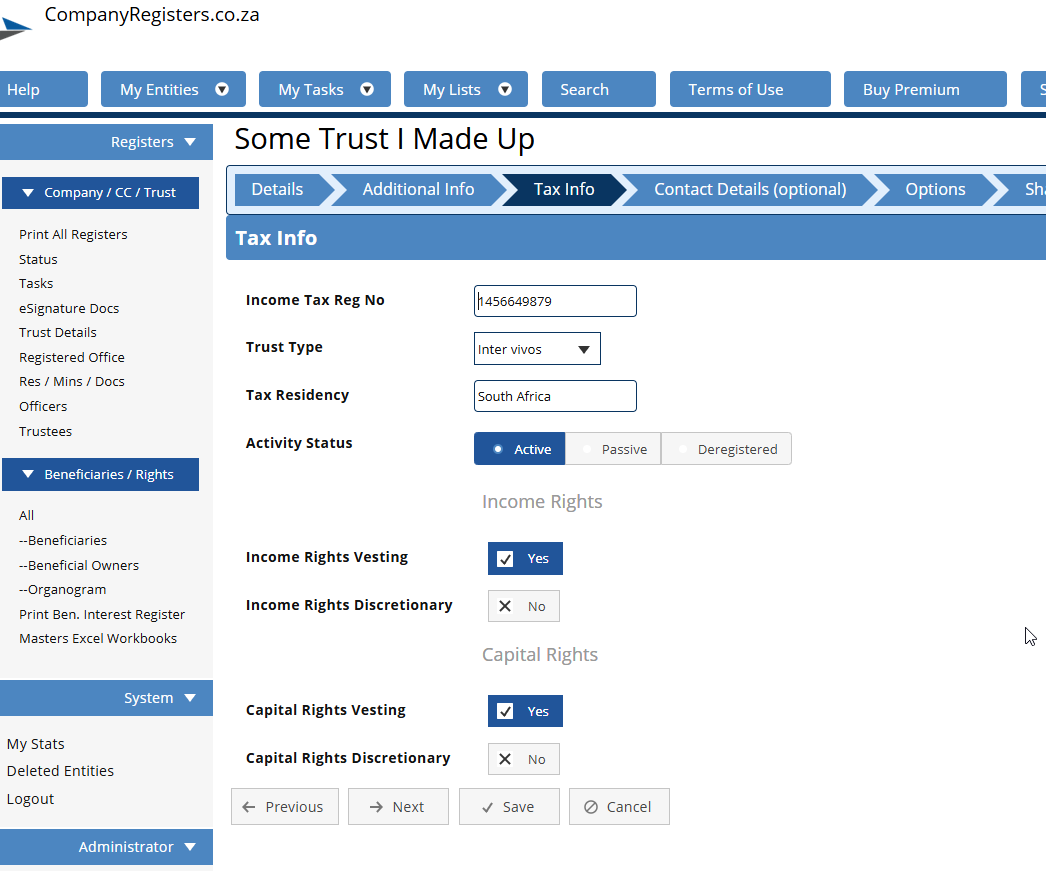
There is also a new tab for “Tax Info”; this will pull through to all your documents required for submission to SARS:
In addition to our existing “Beneficiaries” button, we have also added a few more:
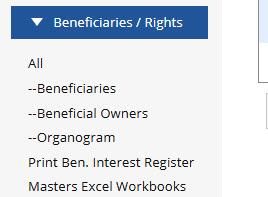
Let’s go through the buttons and what they mean.
. All – These are subholders that are not natural persons – e.g other Trusts that are not beneficiaries
. Beneficiaries – These are the Vested or Discretionary Beneficiaries
. Beneficial Owners – This includes both Beneficiaries and Trustees, as well as subholders of juristic entities
. Organogram – This is where you build the structure of the organogram after adding all the roleplayers under Beneficial Owners. For example, if you have another Trust in the ownership structure, you would first add the Trust and it’s beneficiaries under Beneficial Owners and then go to the Organogram page to place the subholders ‘into’ that Trust.
. Print Ben. Interest Register – This prints all those that hold interest and their details
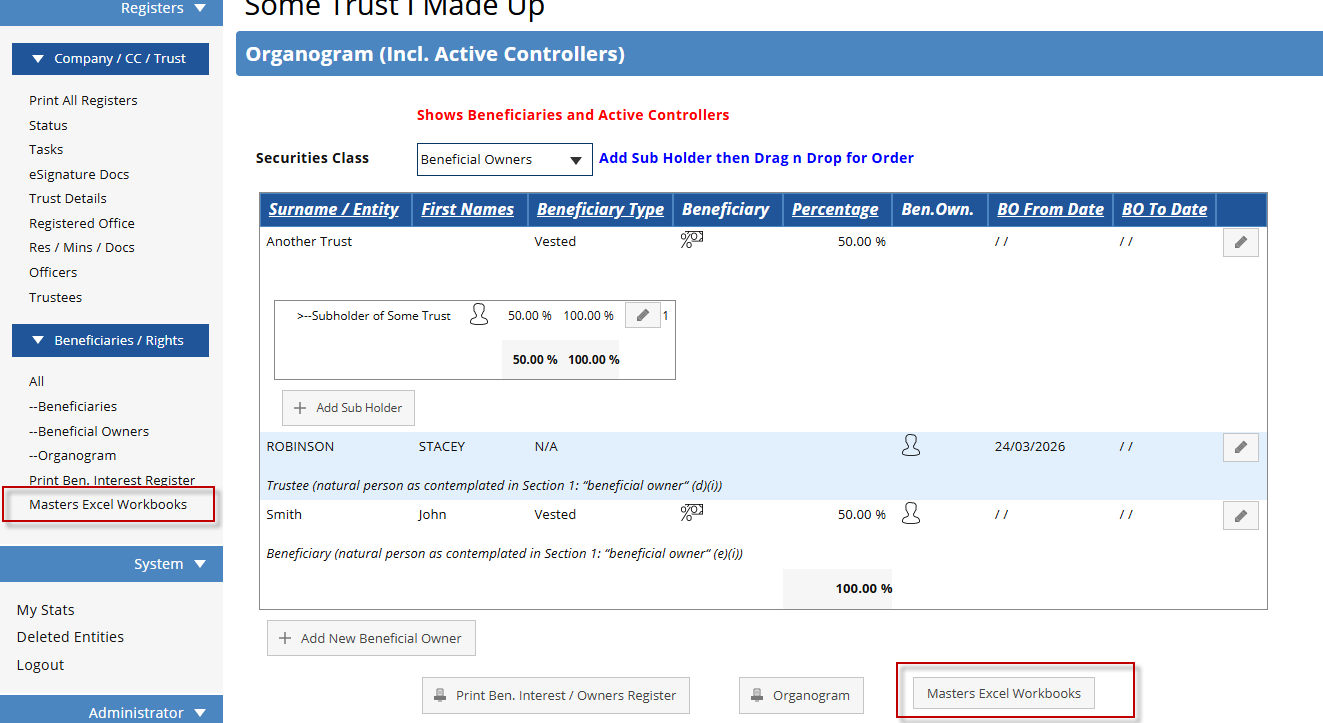
. Masters Excel Workbook – This takes the information in the Organogram and automatically adds it to the Excel template provided by the Masters Office for submission.
Step-By-Step Guide:
After you have set up your Trust and its Trustees, follow these steps to easily capture the Beneficial Ownership information.
1. Add Beneficiaries:
Go to the Beneficiaries section and click “Add New Beneficiary”.
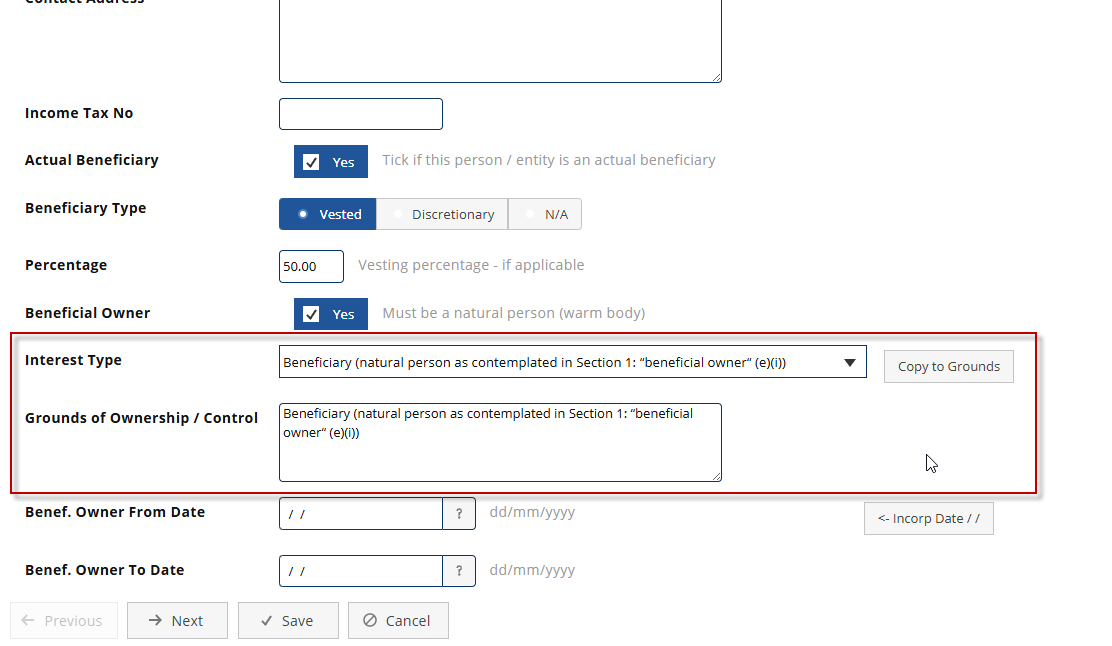
Fill in the details, and don’t forget to tick the “Active Controller” box; if this box is not ticked, they will not appear on the organogram. Also tick the box that says “Actual Beneficiary”. Include Interest Type and Grounds of Ownership. If you’re adding a juristic entity, just untick the “Beneficial Owner” box:
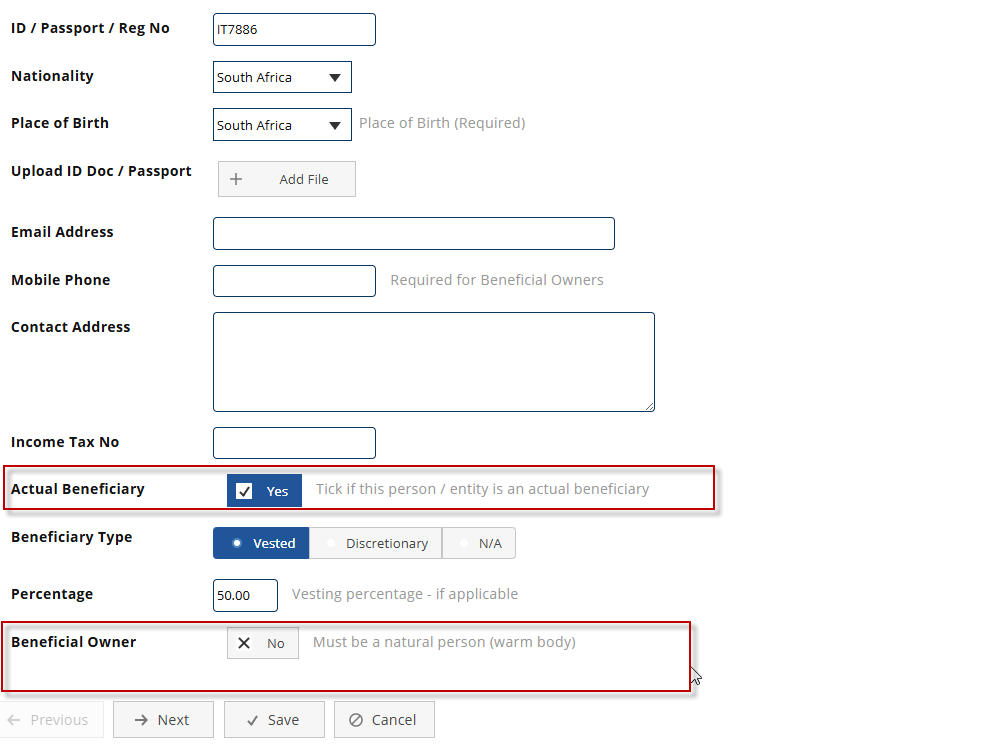
Let’s add a 2nd Trust as a beneficiary to showcase the different levels in BO. When adding a juristic entity as a Beneficiary, UNTICK “Beneficial Owner”, and TICK “Actual Beneficiary”:
Now we have our beneficiaries, let’s move onto Beneficial Owners.
2. Add Beneficial Owners:
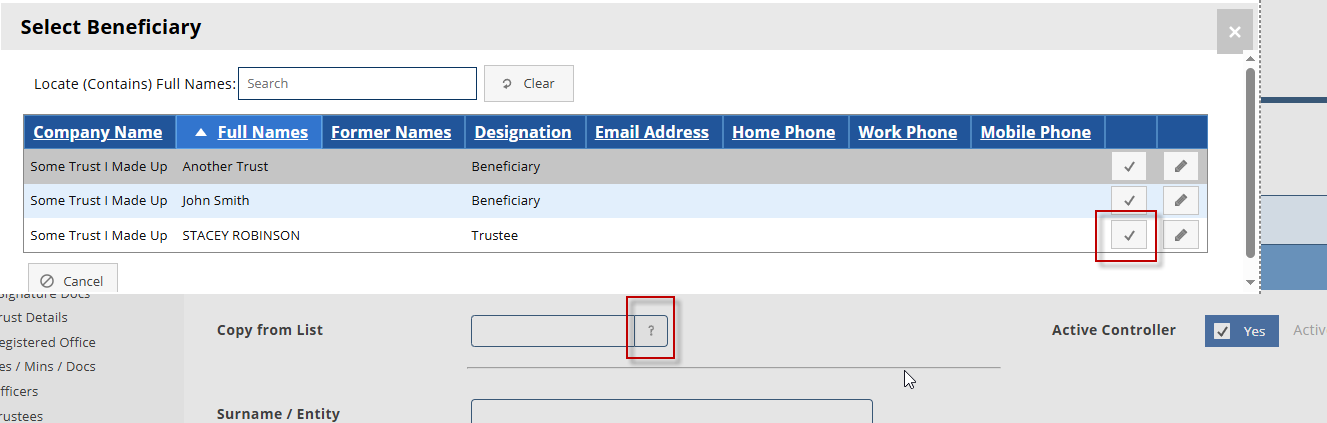
Beneficiaries that are ticked as Beneficial Owners will copy across to the Beneficial Owners page. Let’s add our Trustee as a Beneficial Owner by clicking “Add New Beneficial Owner” and selecting the Trustee from our list:
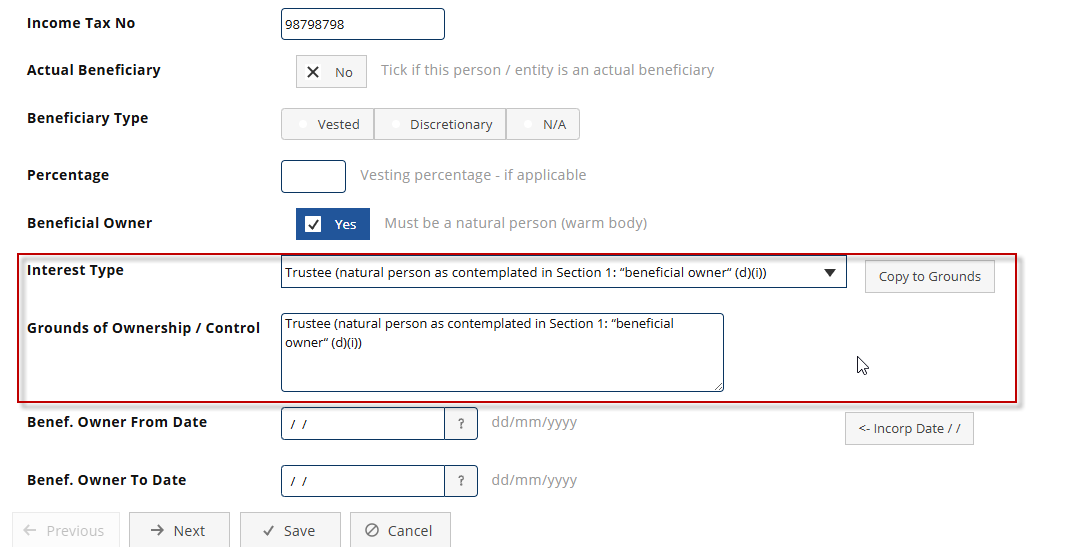
For this Trustee, UNTICK “Actual Beneficiary” and TICK “Beneficial Owner”. In the Interest Type drop down box, you can select Trustee and see the relevant section of the Trust Property Control Act referenced:
We now have a Trustee and a Beneficiary listed under “Beneficial Owners” – we need to add the Trustees of the beneficiary Trust as Beneficial Owners. Let’s do that now. For this Beneficial Owner, UNTICK “Active Controller”, UNTICK “Actual Beneficiary”, TICK “Beneficial Owner”:

Now we have a Trustee, a Beneficiary, and a sub-Trustee as our beneficial owners. Let’s move on to building the organogram!
3. Build Your Organogram:
This is what our BO organogram looks like right now:
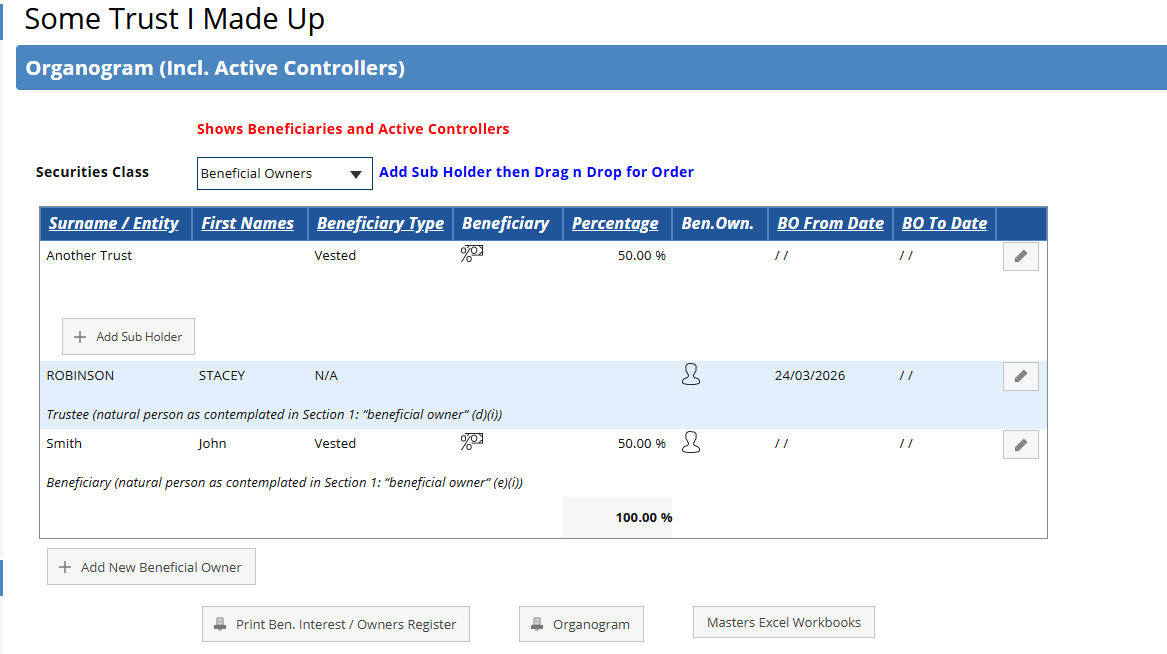
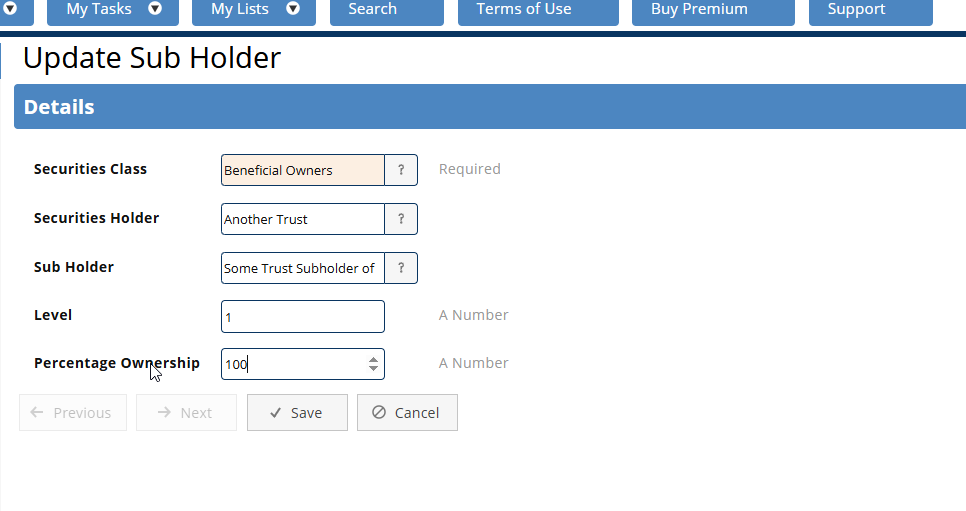
We need to add our sub-Trustee, to Another Trust. Click “Add Subholder” and select our sub-Trustee from the list:

Specify them as Level 1, and add the percentage ownership, let’s say this is 100%:
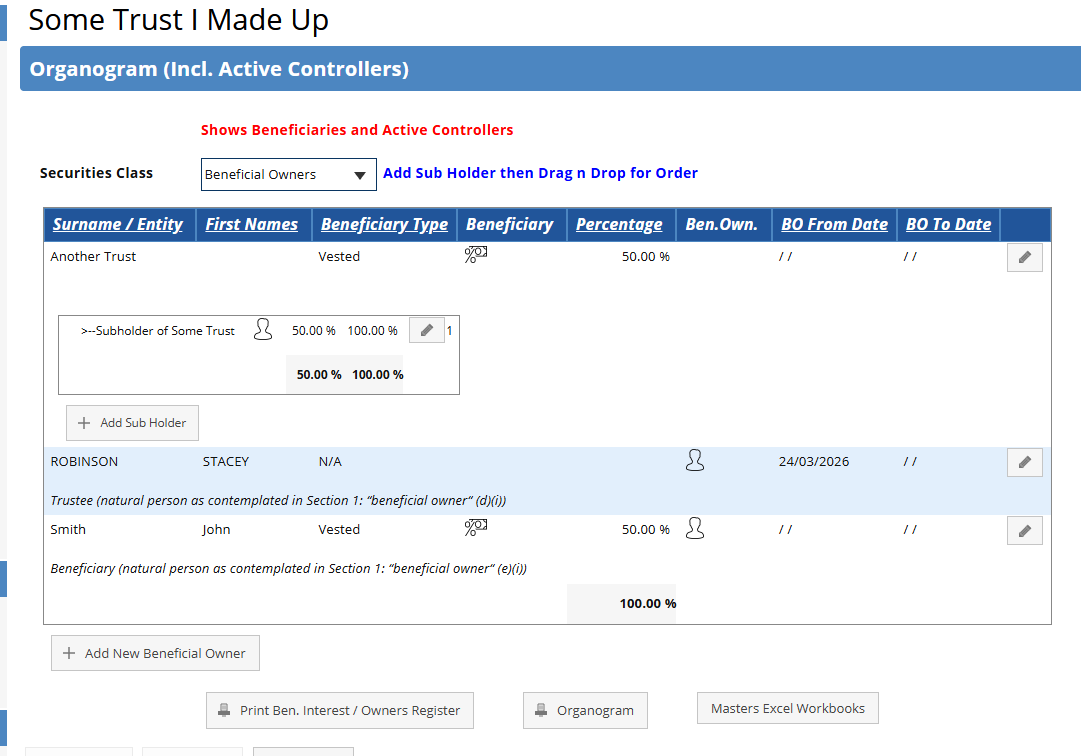
Our organogram now looks like this, and the effective ownership for Subholder of Some Trust has been automatically calculated:
Now we can generate our Excel workbook from this information.
4. Generate Your Excel Workbook:
Click on “Masters Excel Workbooks”, then “Create New Workbook from Masters Template”:
Download the generated Excel workbook:

Let’s take a look at it!
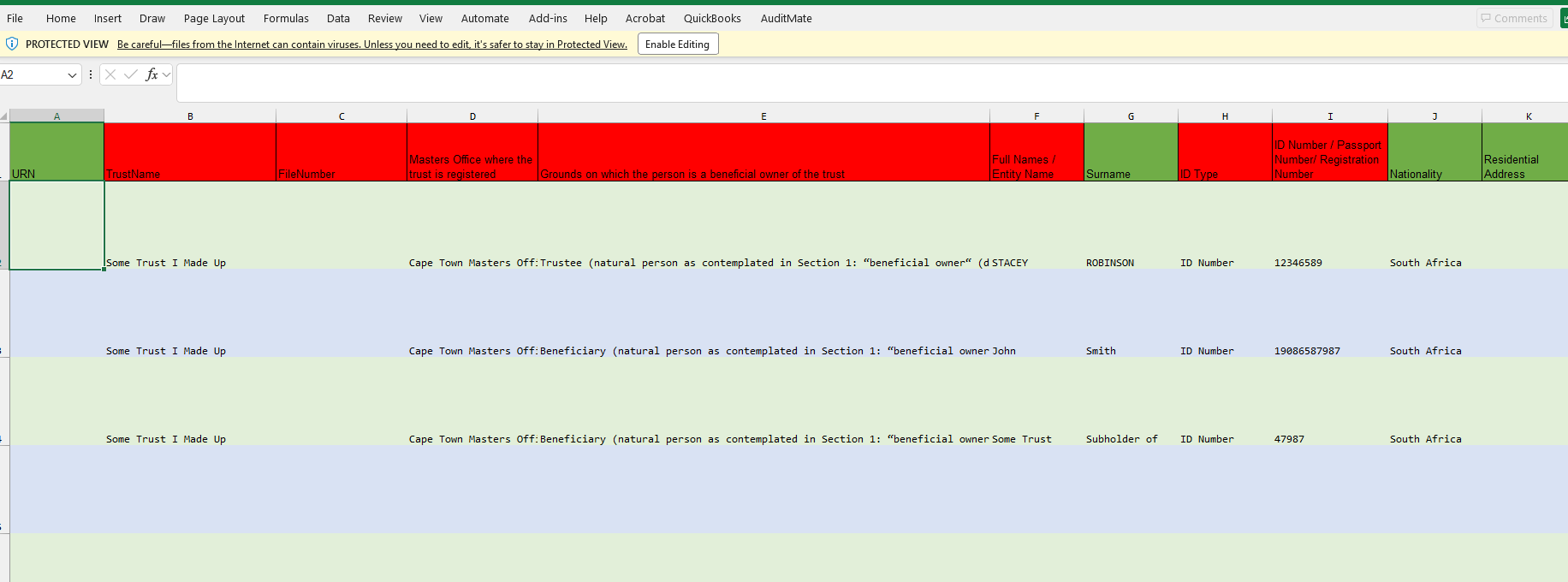
ONLY the Beneficial Owners (natural persons) will appear in the document – so our subholder in Another Trust is on this list, but Another Trust itself is not, because it is not a natural person and therefore NOT a beneficial owner.
And that is our Beneficial Ownership for Trusts complete! Thank you for reading this tutorial – for any assistance or feedback, feel free to contact us here!
For an in-depth look into this process, sign up for our webinar on the 8th of April, where we will be demonstrating all of these features and hosting a live Q&A. Sign up here!
Check out our handy flowchart for determining where to add your Trust roleplayers: