

Let’s go through how to add a Trust and capture it’s details on CompanyRegisters.
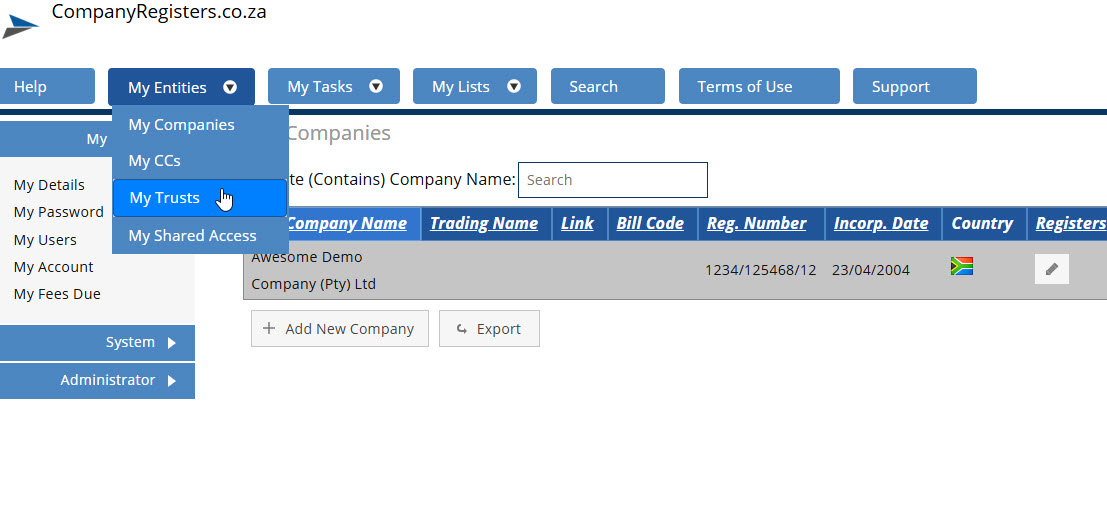
After setting up your profile and logging in, click on “My Entities” and then “My Trusts”:
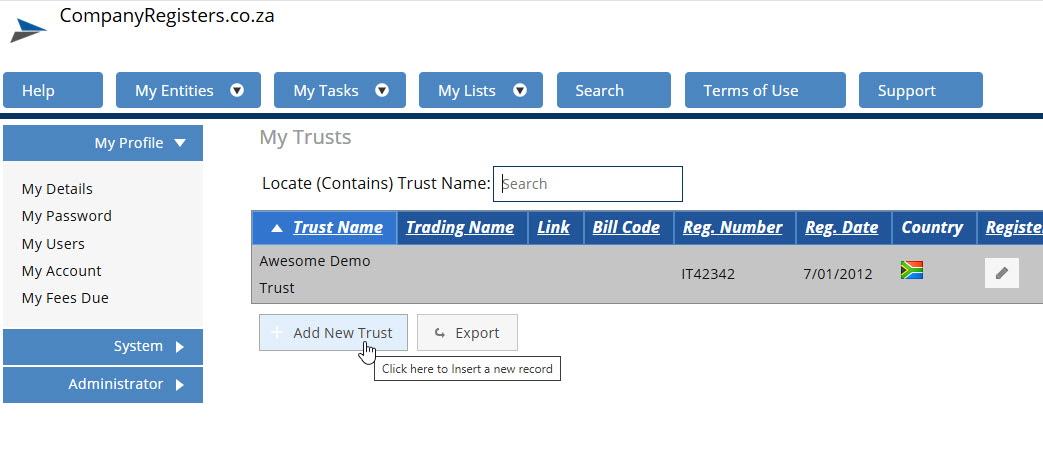
Click “Add New Trust”:
Enter the Trust details and click “Add New Trust” to confirm:

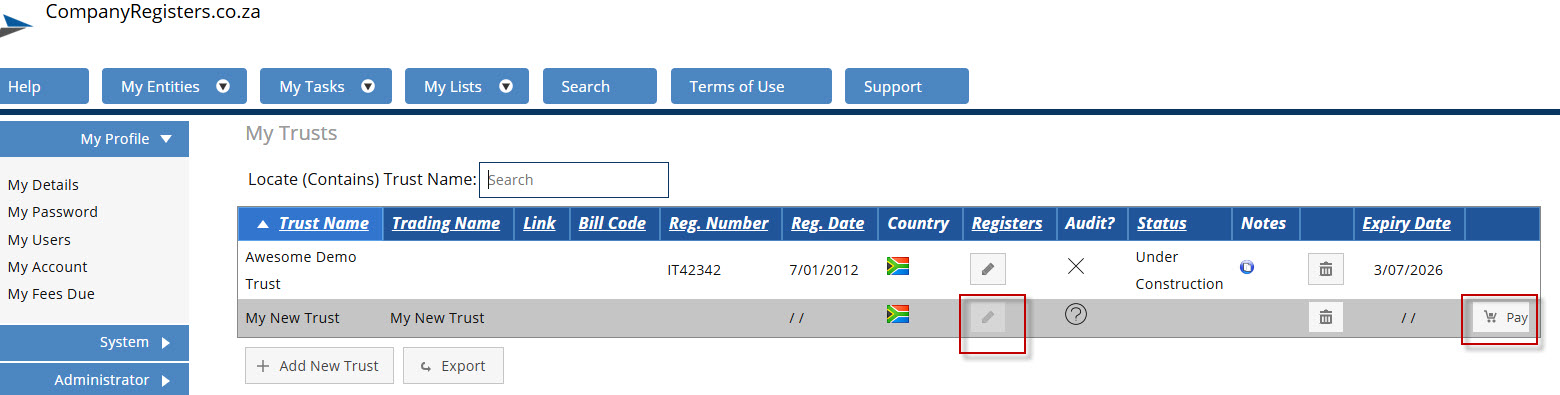
The Trust has now been created – if you have available credits on your profile or you are on the Unlimited subscription, the Trust will be available to edit immediately. If you do not have credits available, the Trust will be locked and have a “Pay” icon on the far right:
To make payment, please follow this tutorial.
Once you have made payment, the Trust will be open again. Click on the pencil icon to open the Trust for editing:

On the Details page that opens up, fill in all the information, paying close attention to the Audit Requirement section and the Tax Info section – these 2 sections will not be allowed to stay blank:
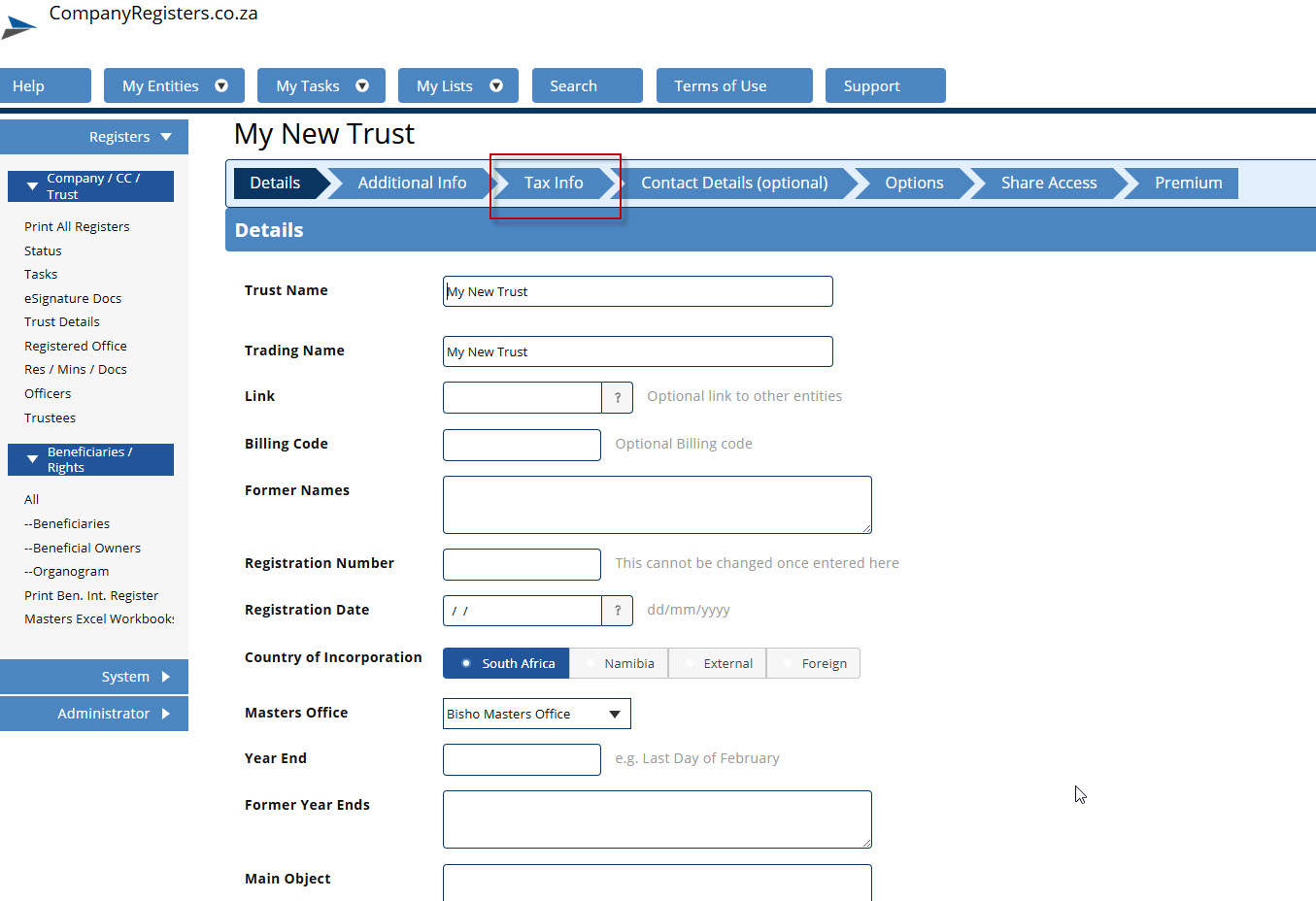
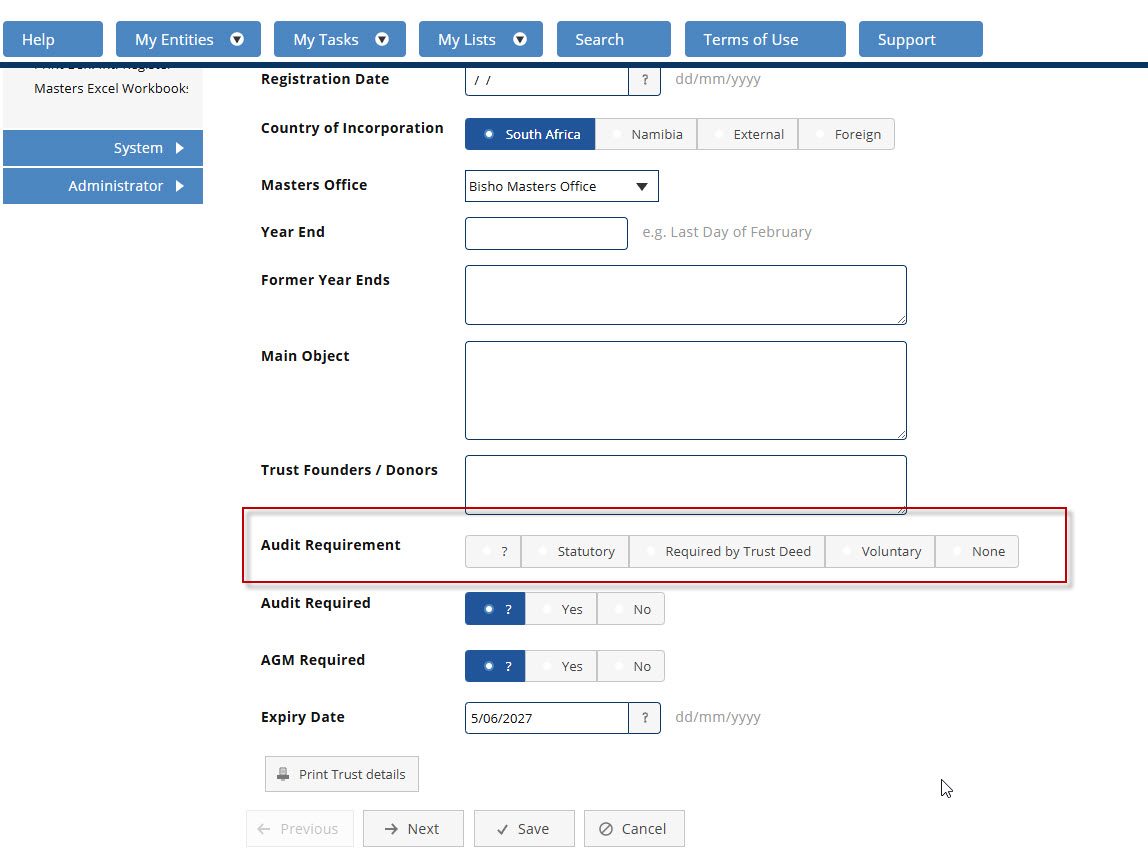
Once these details have been captured, click Save. Your Trust is now added! To proceed, the logical next steps are to capture the Registered Office details, the Public Officer details, and the Trustee details. Simply select the applicable tab and then click “Add New”:
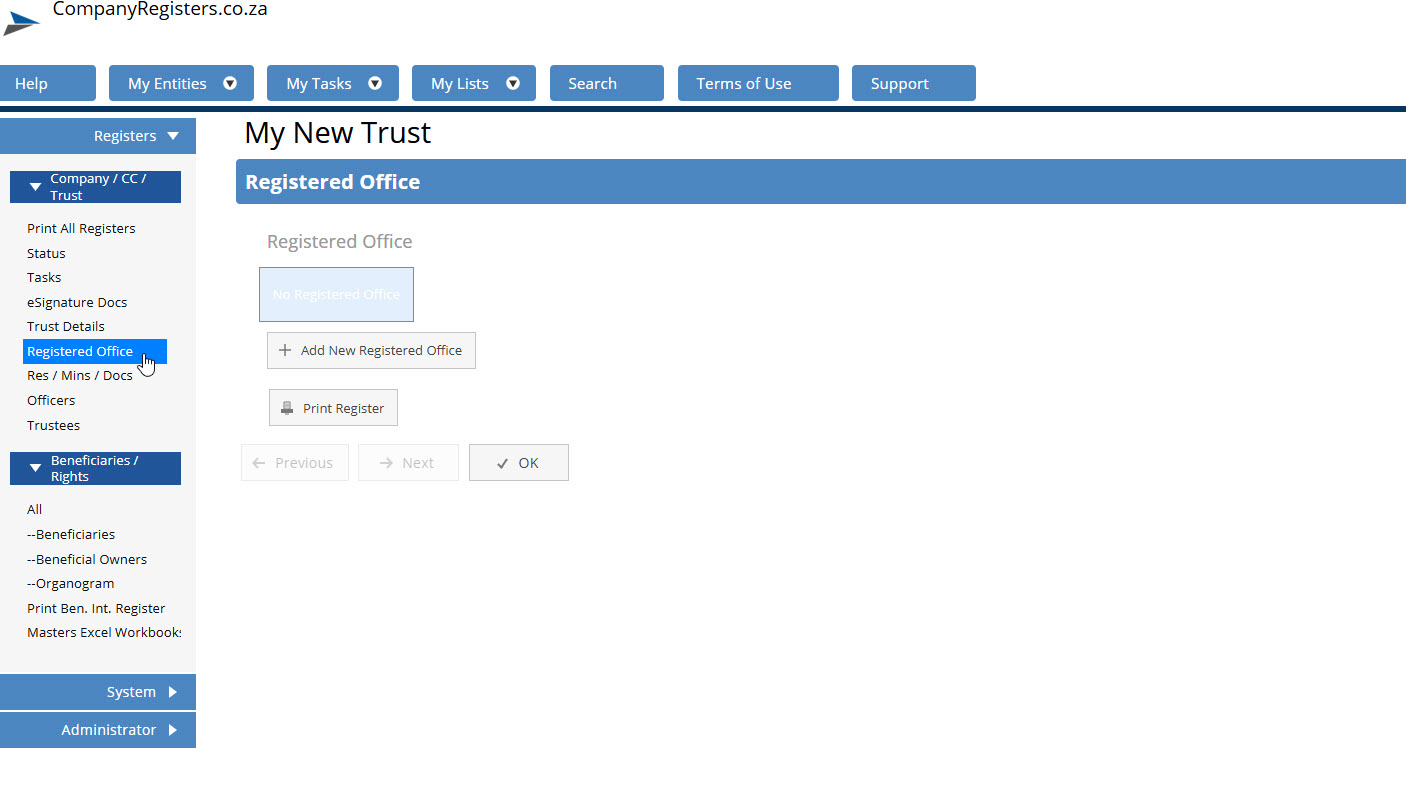
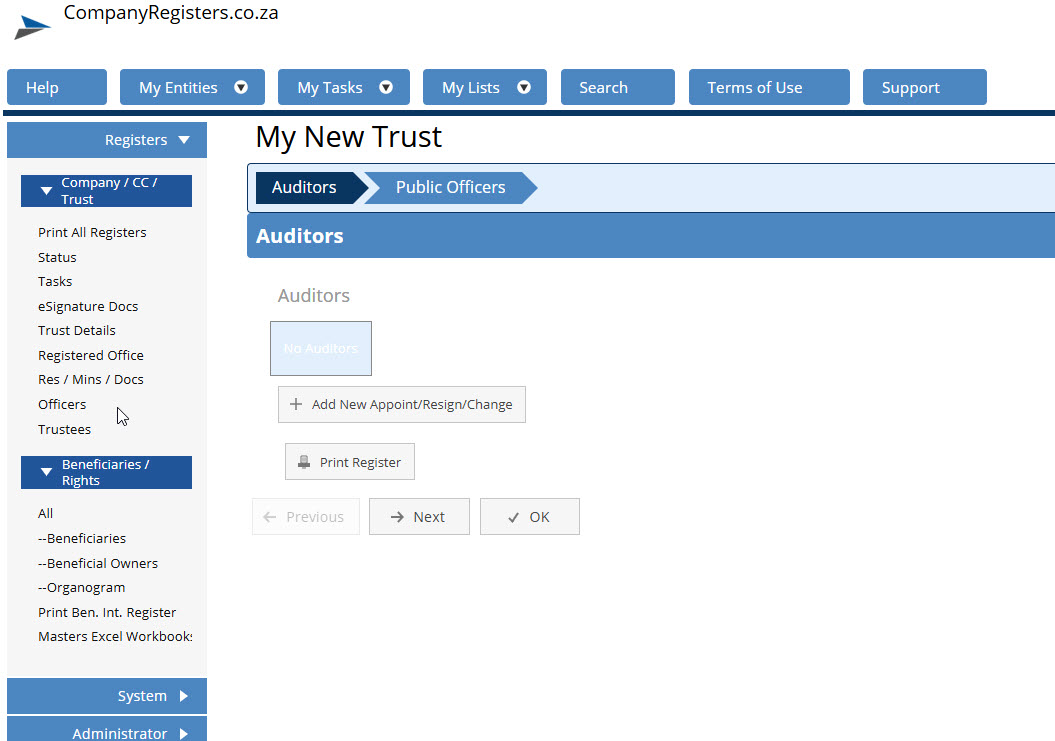
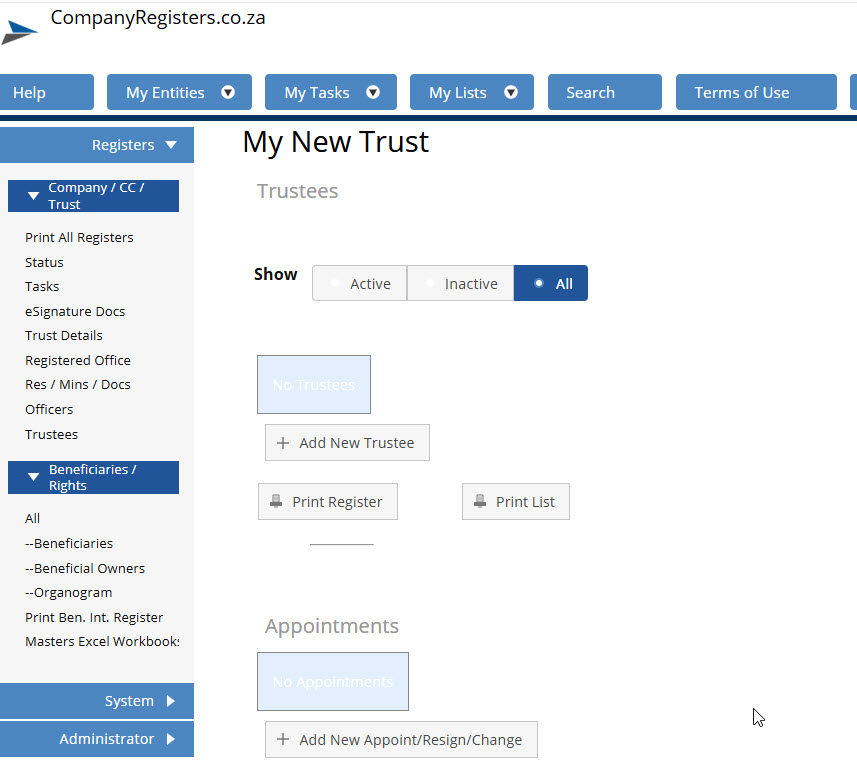
To capture the rights and beneficiaries, please view our tutorial here.